Billing & Subscription
Manage your Mentora subscription, seat count, trial period, and payment information.
Required Role: Admin
Accessing Billing Settings
- Go to Settings in the sidebar
- Select the Billing tab
- You'll see your current subscription status and options
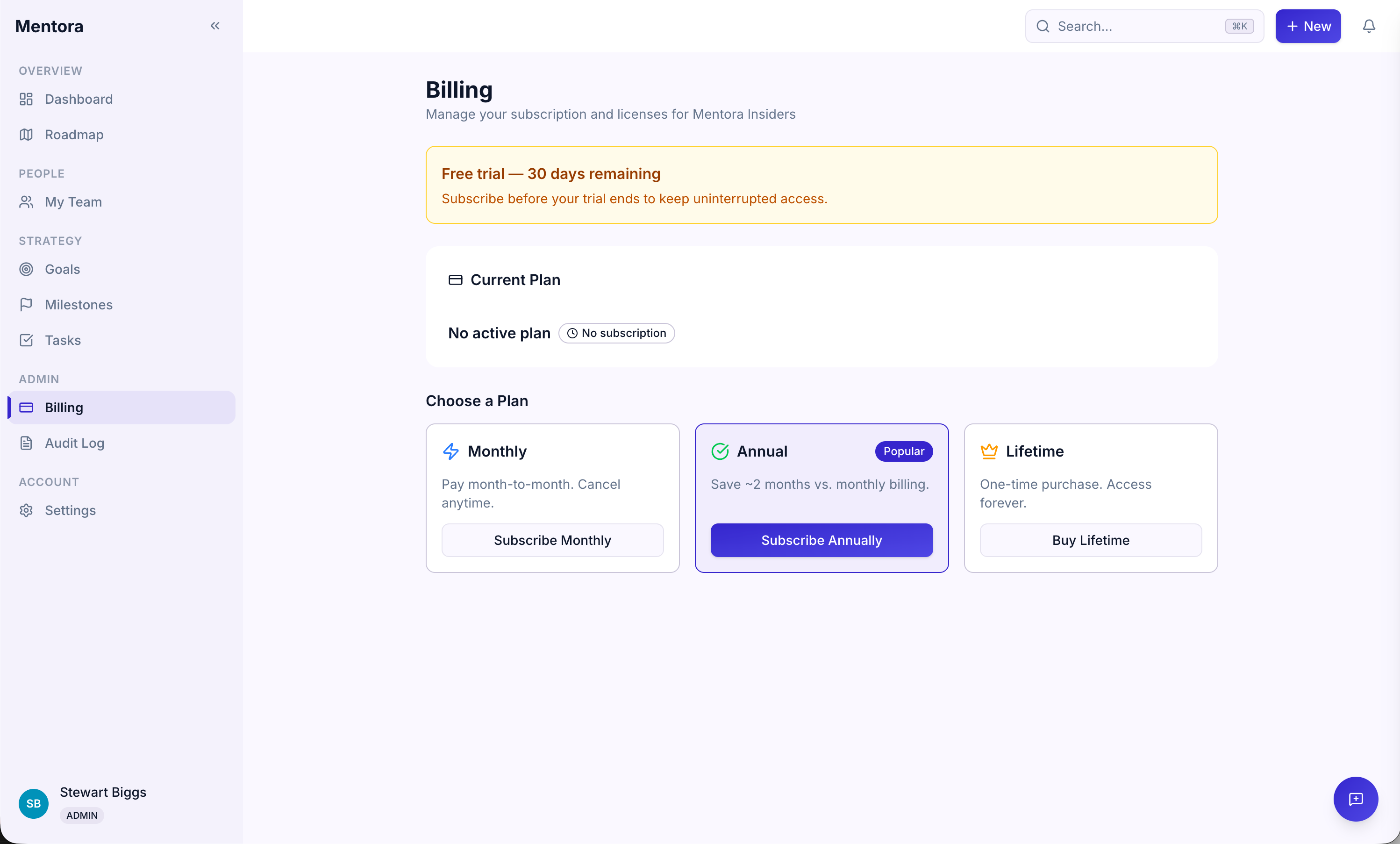
Subscription Statuses
Your subscription can be in one of these states:
| Status | Meaning |
|---|---|
| Trial | You're in a free trial period. No payment required yet. |
| Active | You have a paid subscription. You're being charged regularly. |
| Trialing | You're in a Polar-managed trial period with a payment method on file. |
| Canceled | Your subscription was canceled. You may still have access until the current period ends. |
| Past Due | Your payment failed. Update your payment method to continue. |
| Expired | Your trial ended and you didn't upgrade. Access may be limited. |
Trial Period
If you're in a free trial:
- No payment method required — You can use Mentora for free during your trial
- Trial end date — You'll see when your trial ends
- Upgrade before trial ends — Add a payment method and choose a plan to continue
Seats & Licensing
Mentora uses seat-based licensing. Each person in your workspace uses one seat.
Your current usage:
- Seats available — How many people you can add
- Seats used — How many people are currently in your workspace
- Occupied seats — Are displayed on the billing page
When you reach your seat limit, you won't be able to invite more people until you:
- Upgrade to more seats, or
- Deactivate someone to free up a seat
Upgrading Your Plan
To add seats:
- Go to Billing
- Click Upgrade or Add Seats
- Choose how many seats you want to add
- Review the new price
- Click Confirm
You'll be charged prorated amount immediately, and the remaining amount will be billed with your next invoice.
Billing Cycle
- Monthly billing — Charged once a month on the same day you subscribed
- Annual billing — Charged once a year (often with a discount)
You can see your billing cycle and next billing date on the Billing page.
Payment Method
To update your payment method:
- Go to Billing
- Click Update Payment Method
- Enter your credit card details
- Click Save
Your payment method is secured and never stored by Mentora (payment processing is handled by Polar).
Invoices & Receipts
You can download invoices for accounting purposes:
- Go to Billing
- Scroll to Invoice History
- Click Download next to the invoice you want
Canceling Your Subscription
If you want to cancel:
- Go to Billing
- Click Cancel Subscription
- Confirm the cancellation
What happens:
- Your subscription ends at the end of the current billing period
- You'll have access until then
- After your subscription ends, you may have limited access depending on your plan
Troubleshooting
My payment failed
Your subscription status is "Past Due." Go to Billing and update your payment method. Once updated, payment will be retried.
I want to cancel my subscription
Go to Billing and click Cancel Subscription. You'll have access until the end of your billing period.
I need an invoice for accounting
Go to Billing → Invoice History and download the PDF.
I want to change my billing cycle (monthly to annual)
Contact support for help with this change. They can adjust your plan without losing your data.
Can I get a refund?
Contact support to discuss refund options. Refunds are typically available within 30 days of purchase.