Sign Up for Mentora
Creating a Mentora account is quick and straightforward. You have two options: sign up with email and password, or use federated login (Google or Microsoft).
Note: If you've been invited to an existing Mentora workspace, you may see a signup form customized for your organization. Follow the same steps below.
Option 1: Sign Up with Email & Password
Step 1: Go to the Mentora page at https://app.getmentora.app and click Register.
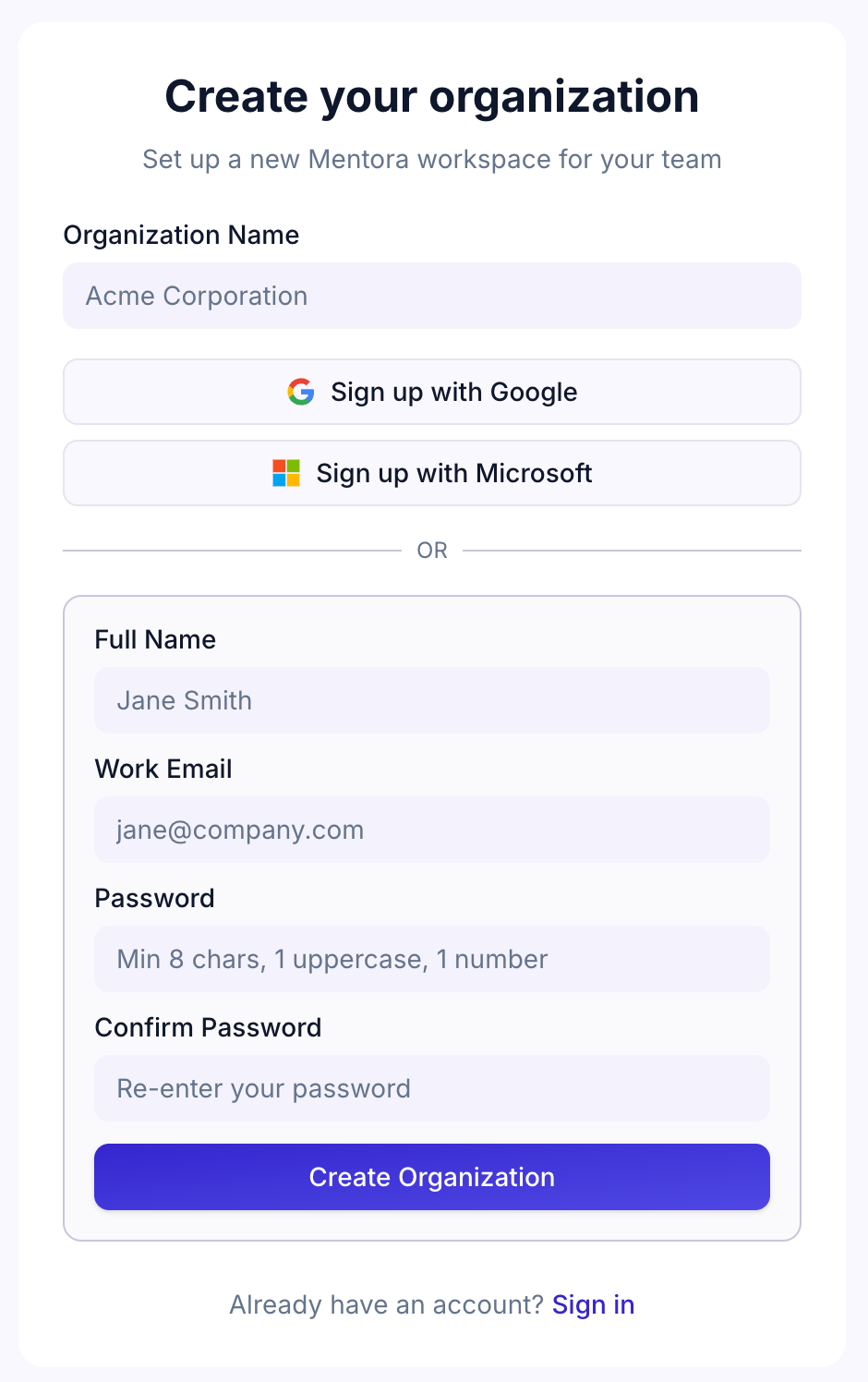
Step 2: Enter your details:
- Organization Name — The name of your company or team (you can change this later)
- Your Name — Your full name
- Email — A valid email address (you'll use this to log in)
- Password — Create a strong password that meets these requirements:
- At least 8 characters
- At least 1 uppercase letter (A–Z)
- At least 1 number (0–9)
Step 3: Click Create Account
Step 4: You'll be signed in automatically and taken to your dashboard.
Option 2: Sign Up with Google
Step 1: On the signup page, click Sign Up with Google
Step 2: You'll be redirected to Google. Sign in with your Google account.
Step 3: Google will ask you to authorize Mentora. Click Allow.
Step 4: Return to Mentora and enter your Organization Name
Step 5: Click Continue. You'll be signed in and taken to your dashboard.
Option 3: Sign Up with Microsoft
Step 1: On the signup page, click Sign Up with Microsoft
Step 2: You'll be redirected to Microsoft. Sign in with your Microsoft account (or Azure Entra ID).
Step 3: Microsoft will ask you to authorize Mentora. Click Accept.
Step 4: Return to Mentora and enter your Organization Name
Step 5: Click Continue. You'll be signed in and taken to your dashboard.
Your Organization Name
When you create a Mentora account, you're also creating an organization (also called a "workspace"). This is the container for your team, your goals, and all your career development data.
You can change your organization name, logo, and settings later in Workspace Settings.
Email Verification
If you signed up with email and password, you may receive a verification email. Click the link in the email to verify your address. This helps us ensure your account is secure and that we can send you important notifications.
What's Next?
- Explore Your Dashboard
- Invite Your Team
- Learn about Career Vision
Troubleshooting
I didn't receive a verification email
Check your spam or junk folder. If you still don't see it, contact support.
I forgot my password
Go to the login page and click Forgot password? to reset it.
I signed up with Google/Microsoft but it's asking me to set a password
You don't need a password if you signed up with Google or Microsoft — your login is managed by them. If you want to add a password for backup access, you can do that in Settings.