Inviting Your First Team
Once you've set up your account, the next step is to bring your team into Mentora. Inviting people is simple and takes just a few clicks.
Required Role: Manager or Admin. If you're an employee, your manager will invite you.
Step-by-Step: Invite a Team Member
Step 1: Go to My Team in the sidebar (or click the Team icon)
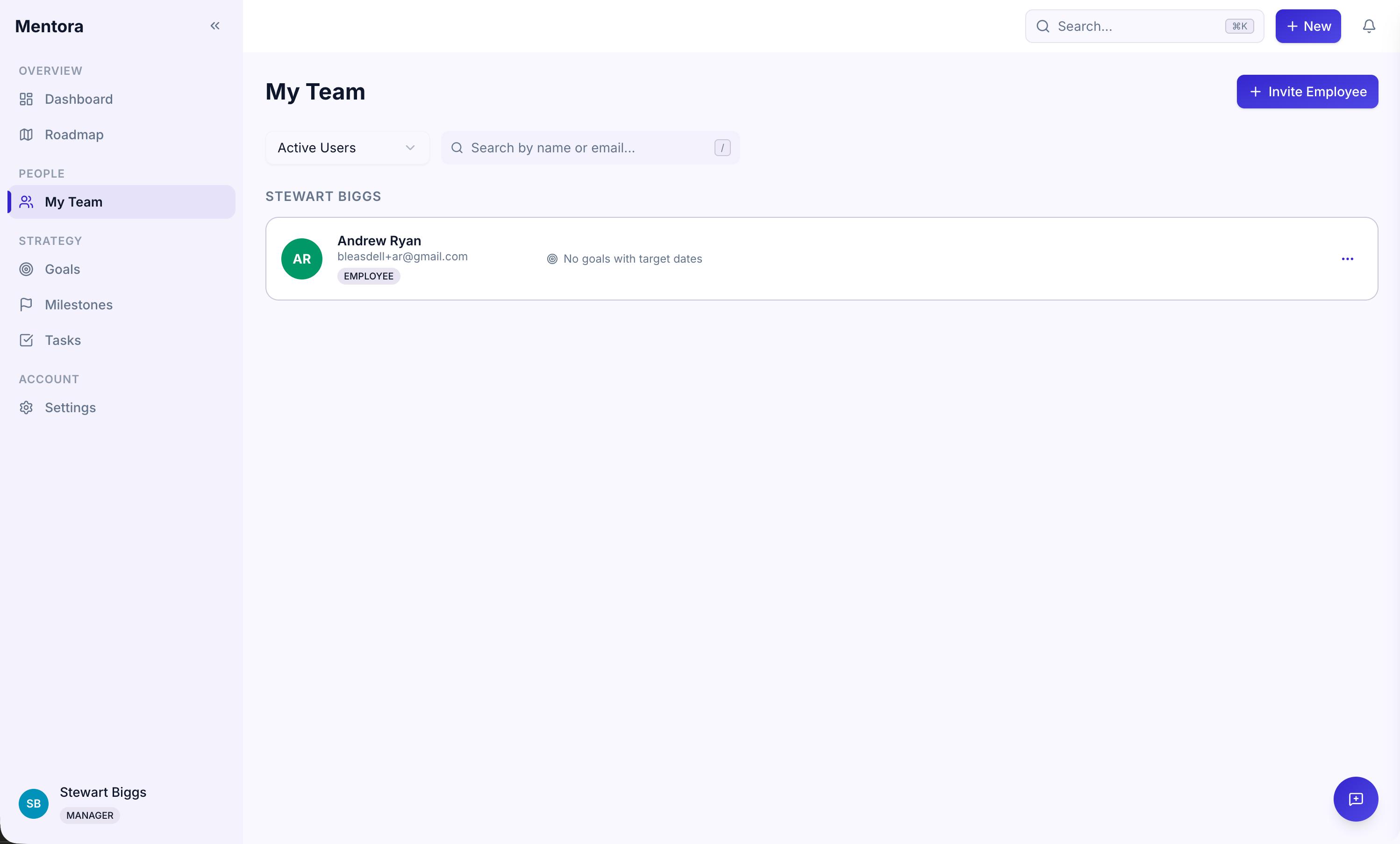
Step 2: Click Invite a Member button
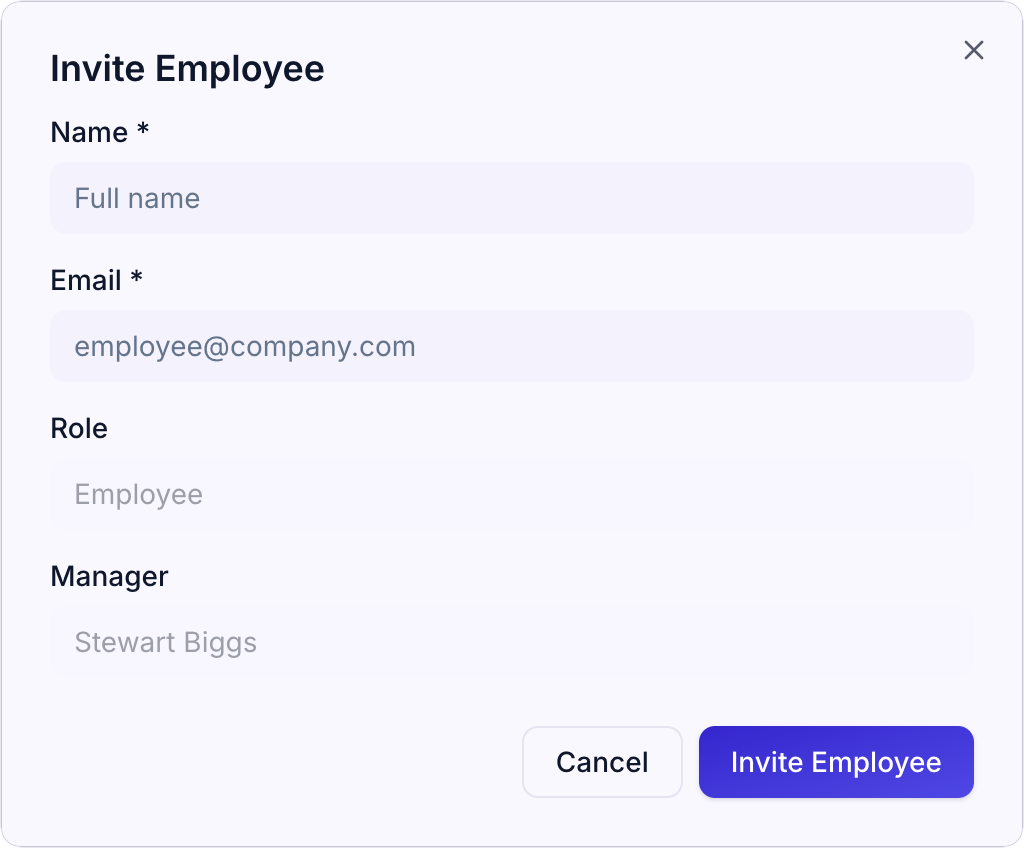
Step 3: Enter the person's email address
Step 4: Choose their role:
- Employee — Default role for team members. Can create and manage their own goals, see their own work, and receive feedback
- Manager — Can do everything an Employee can, plus see and manage all direct reports' goals and tasks
- Admin — Full access to the organization; can manage users, settings, and view the audit log
See Roles & Permissions for details on what each role can do.
Step 5: Click Send Invitation
The person will receive an email inviting them to join Mentora. They'll have a link to accept the invitation and create their account.
What Happens Next
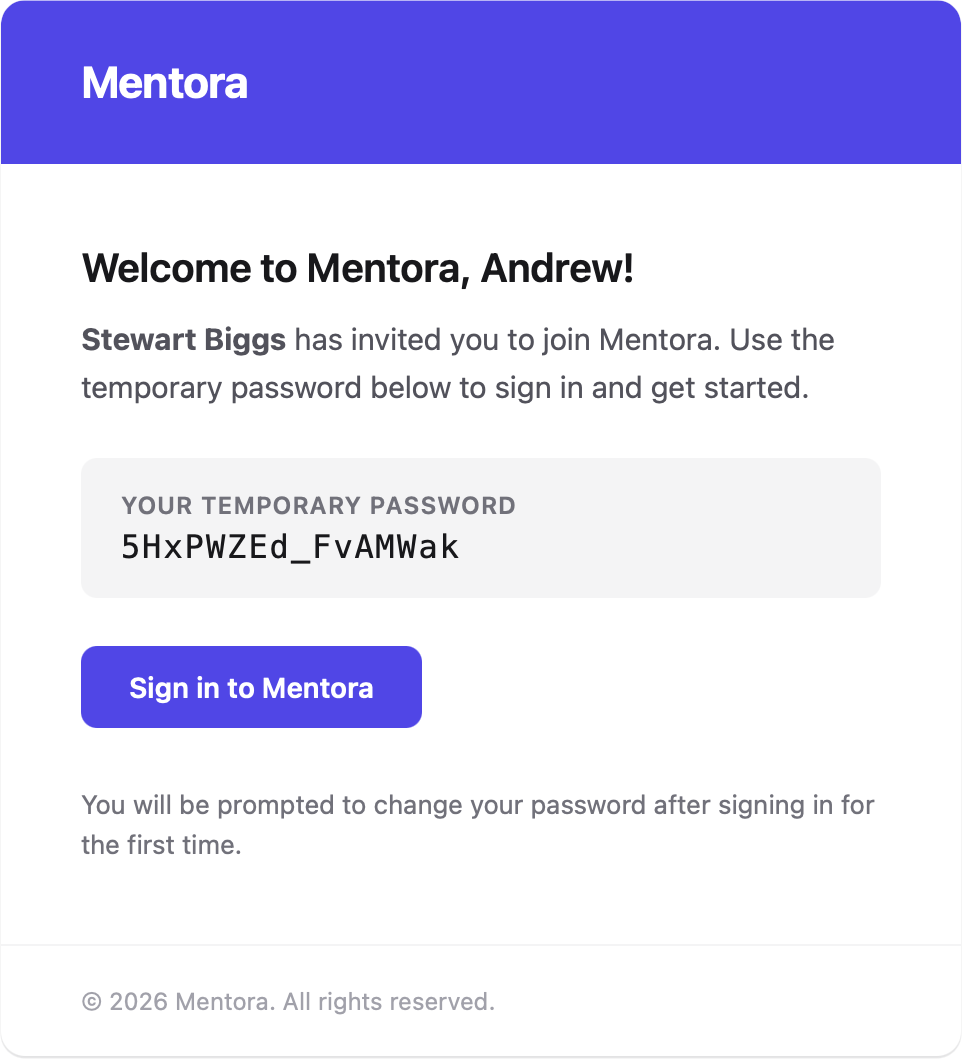
The Invitation Email
Your team member will receive an email from Mentora with the subject line "You're invited to join [Organization Name] on Mentora."
The email includes:
- A welcome message
- A link to accept the invitation
- Instructions on how to create their account
They Accept the Invitation
When they click the link in the email, they'll be taken to Mentora and asked to create an account. They can:
- Sign up with email and password, or
- Sign up with Google or Microsoft
Once they accept and create an account, they're fully part of your workspace and can start creating goals.
You'll See Them on Your Team Page
Once they've joined, they'll appear on your Team page with their role and status.
Inviting Multiple People
You can invite team members one at a time using the steps above. If you need to invite many people at once, contact support for bulk invitation options.
Managing Invitations
Resend an Invitation
If someone didn't receive their invitation email (or lost it), you can resend it from the Team page. Click the person's name and select Resend Invitation.
Change Someone's Role
Once someone has joined, you can change their role from the Team page. Click the person's name, find their Role, and select a new one. The change takes effect immediately.
Remove Someone from Your Workspace
You can deactivate a team member from the Team page. This removes their access while keeping their data in the audit log. Click the person's name and select Deactivate.
Important Notes
- Everyone needs an email address. Invitations are sent to email, so make sure you have valid email addresses for your team.
- They can only join once. Once someone accepts an invitation and creates an account, that email is tied to their account. They can't join again with the same email.
- Spelling matters. Double-check email addresses before sending. If you invite someone with a typo, they won't receive the email.
What Your Team Will See
When your team members first log in, they'll see:
- Career Vision prompt — They'll set their career direction
- Empty dashboard — No goals yet (they or you can create them)
- Sidebar navigation — Access to Goals, Tasks, Milestones, and Team pages
- Settings — Where they can update their profile
As a manager, you can create goals for them, or they can create their own goals and you can refine them together.
Troubleshooting
Someone says they didn't receive an invitation
- Ask them to check their spam or junk folder
- Resend the invitation from the Team page
- Ask them to check again in a few minutes (emails can take time to arrive)
- If they still don't receive it, contact support
I invited someone but they're not showing up on my Team page
They might not have accepted the invitation yet. The invitation email includes a link they need to click. Once they click it and create their account, they'll appear on your Team page.
Can I invite someone who already has a Mentora account?
No. Each person can have only one account in Mentora. If they already have a Mentora account with a different email, they can't join your workspace with that email. They'd need to use their existing account.