Your First Dashboard
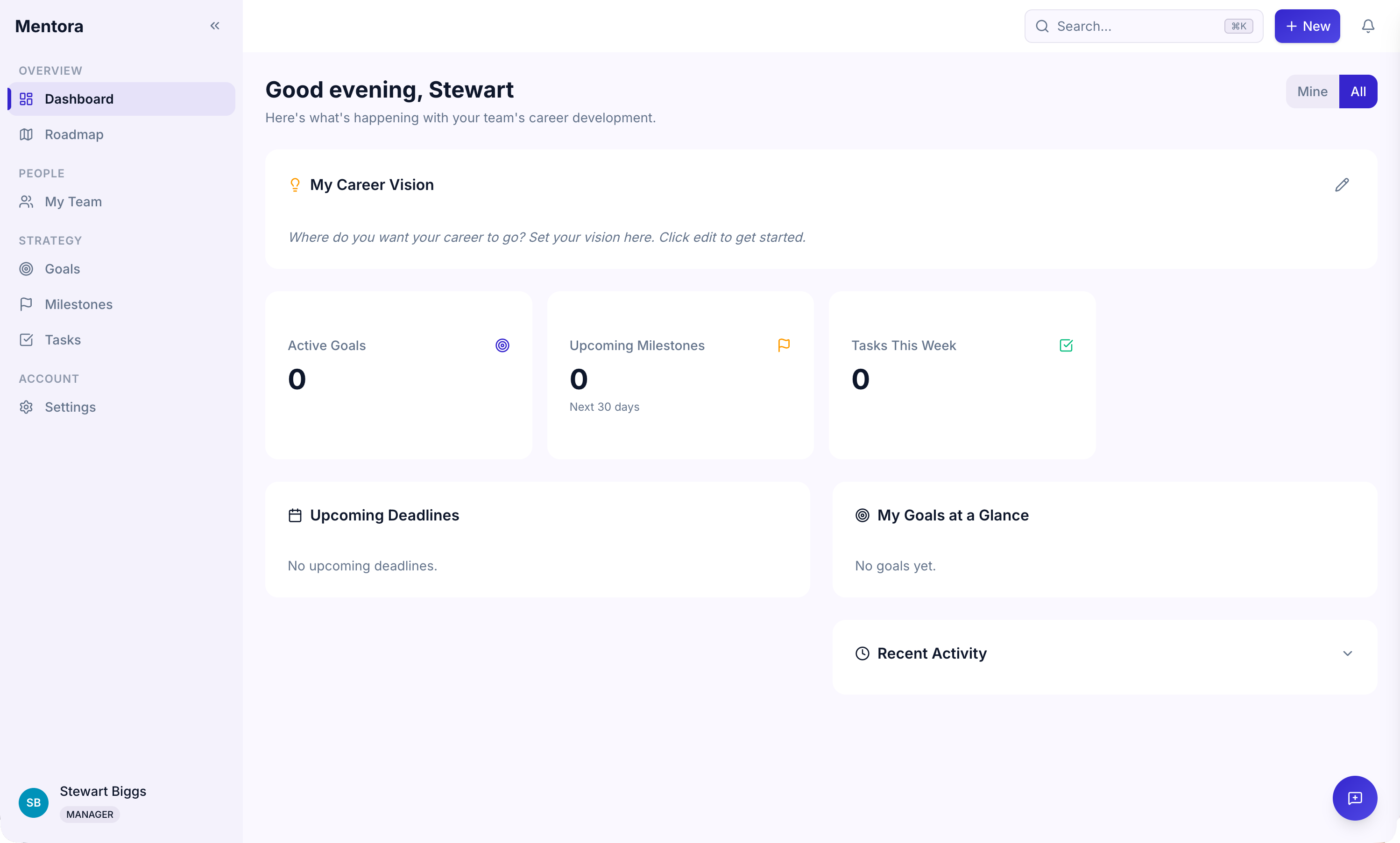
After you sign up and log in, you'll land on your dashboard. This is your home screen in Mentora — the place where you can see your career development at a glance.
The Dashboard Layout
Your dashboard has several key sections:
Career Vision
At the top of the dashboard, you'll see a prompt: "What is your career vision?"
This is your opportunity to write a short statement about where you want your career to go. It might be something like "Become a Tech Lead at a growing startup" or "Transition into UX Design" or "Start my own consulting business."
Your career vision anchors everything else in Mentora. Every goal, milestone, and task can be measured against it.
To set your vision:
- Click in the Career Vision field
- Write 1–2 sentences about your career direction (500 character max)
- Click Save
You can edit your vision anytime.
Stats Section
Below your career vision, you'll see stats about your active goals, milestones, and tasks:
- Active Goals — How many goals you're currently working on
- Milestones — How many milestones across all your goals
- Tasks — How many tasks you need to complete
These numbers update automatically as you create and complete items.
Upcoming Deadlines
This section shows you what's coming up:
- Milestones due in the next 30 days — Checkpoint dates you should be aware of
- Tasks due this week — Work you need to complete soon
If nothing is due soon, this section may be empty.
Recent Activity
The Recent Activity feed shows you what's changed recently in your workspace:
- New goals or milestones you or your manager created
- Status changes (when a goal moves to "In Progress" or "At Risk")
- Comments on your goals, milestones, or tasks
- Team members who joined your workspace
This helps you stay in the loop about what's happening.
Navigation Sidebar
On the left side of your screen, you'll see the navigation sidebar. It's organized into sections:
Overview
- Dashboard — Your home (you are here)
People (visible if you're a manager or admin)
- My Team — See your direct reports and their progress
Strategy
- Goals — Create and manage all your goals
- Milestones — View and manage milestones
- Tasks — See and track all tasks
- Roadmap — Interactive timeline view (coming soon)
Admin (visible if you're a manager or admin)
- Audit Log — See all activity and changes
- Feedback — View feedback submissions (Super Admin only)
Account
- Settings — Profile, security, preferences
Keyboard Shortcut: Press [ to collapse or expand the sidebar and give yourself more screen space.
Your Role Determines What You See
The dashboard looks different depending on your role:
Employee — You see your personal goals, milestones, tasks, and progress. You don't see your teammates' work unless they've shared it with you.
Manager — You see your own goals, plus all of your direct reports' goals, milestones, and tasks. You also see a Team Overview panel that gives you a quick summary of each person's progress.
Admin — You see all activity across your entire organization and have access to settings and audit logs.
What's Next?
If You're an Employee
- Set Your Career Vision — Take a few minutes to write down what you want to achieve
- Create Your First Goal — Start building your roadmap
- Invite Your Manager — Let your manager support your growth
If You're a Manager
- Invite Your Team — Bring your people into Mentora
- Create Career Roadmaps for Your Team — Set up the structure for development conversations
- Learn About the Roadmap View — See all your team's goals on a timeline
If You're an Administrator
- Configure Workspace Settings — Set up your organization
- Set Up SSO — Enable federated login for your team
- Invite Your Team — Bring everyone into the workspace
Tips
- Start with your career vision. It takes 2 minutes and anchors everything else.
- Don't worry about perfection. You can edit everything later — goals, milestones, tasks, even your vision.
- Invite people early. Career development is a conversation. Get your manager or team involved as soon as possible.
Troubleshooting
I don't see the Team Overview section
You must be a manager or admin to see this. If you think you should have this access, contact your workspace administrator.
The sidebar isn't showing all the options I expect
Your role determines what you can see. Some sections (like Audit Log) are only visible to managers and admins. Check Roles & Permissions to understand what your role can access.
Where's the Roadmap view?
The Roadmap is coming soon! For now, you can see all your goals on the Goals page and get a timeline view there.