Milestones
Milestones are time-bound checkpoints within a goal. They break a big goal into smaller, more manageable pieces with clear deadlines.
Before You Begin
- You should have created a Goal first
- Milestones are always linked to a goal
Creating a Milestone
Step 1: Go to a goal detail view
Step 2: Click Add Milestone
Step 3: Fill in the details:
- Title — What this milestone represents (e.g., "Complete Leadership Training")
- Description — Optional. Why this milestone matters
- Target Date — When you want to complete it
Step 4: Click Create
Your milestone starts with a status of Not Started.
Milestone Statuses
| Status | Meaning |
|---|---|
| Not Started | Work hasn't begun |
| In Progress | You're actively working toward this milestone |
| Completed | This milestone is done |
Viewing Milestones
Step 1: Go to Milestones in the sidebar
You can see all milestones across all your goals. Filter by goal or status.
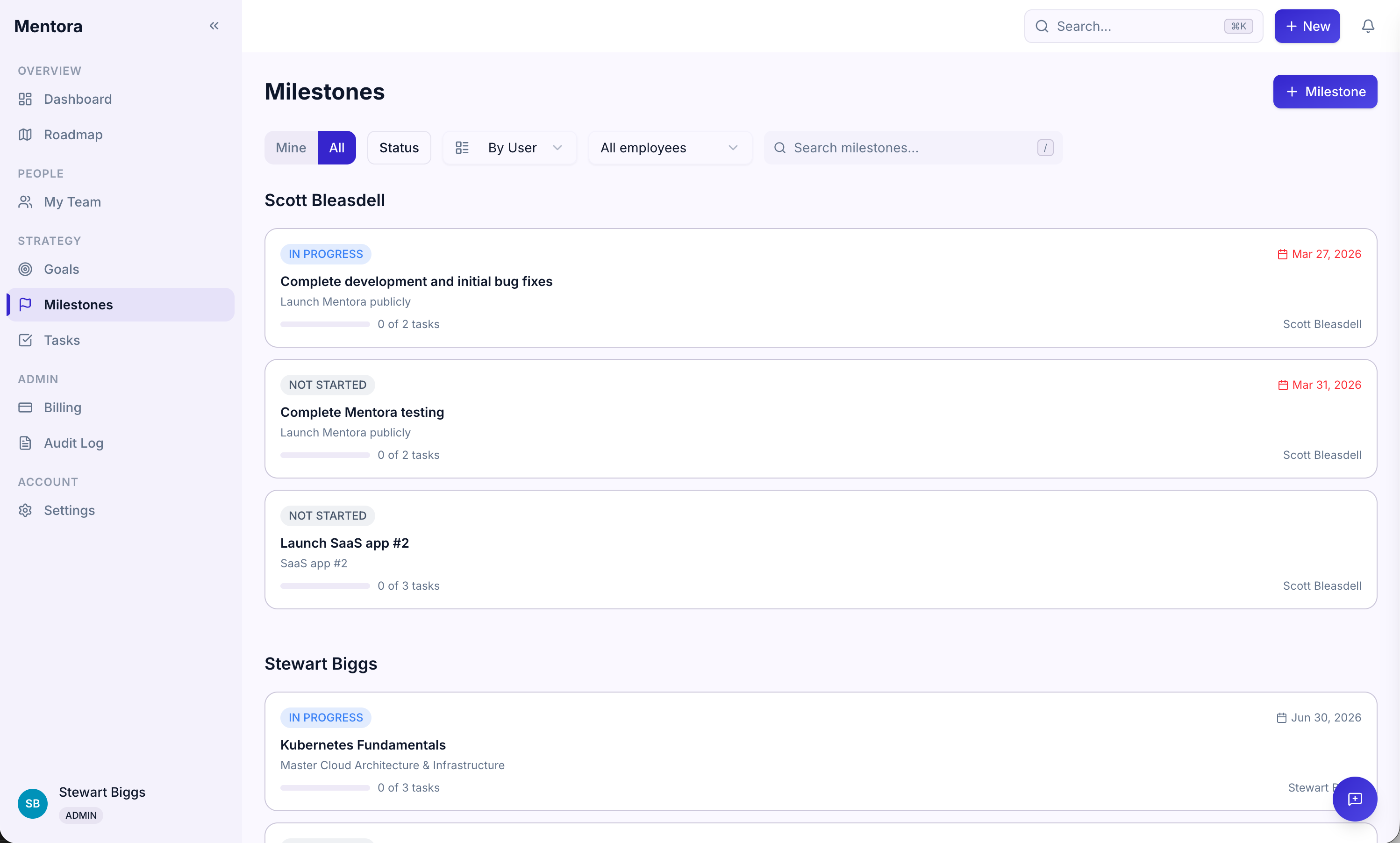
Or, click on a specific goal and see its milestones in the detail view.
Updating Milestone Status
Step 1: Click on the milestone to open it
Step 2: Change the Status field
Step 3: Click Save
Reordering Milestones
You can reorder milestones within a goal to change priorities:
- Click and hold a milestone
- Drag it to a new position
- Release to reorder
Editing Milestones
Click a milestone and edit:
- Title
- Description
- Target date
- Status
Deleting Milestones
If you need to remove a milestone:
- Click it to open the detail view
- Click Delete Milestone
- Confirm
Warning: This also deletes all tasks under that milestone.
Tips
- Milestones should have clear, objective target dates — "Q2 2026" or "June 30, 2026"
- Break goals into 3–5 milestones — Too many milestones makes the goal feel overwhelming; too few loses the checkpoint effect
- Milestones are conversation starters — When a milestone is due, it's a great time to check in with your manager
- Update status when you hit dates — This keeps the roadmap accurate
Troubleshooting
I can't find a milestone
Search on the Milestones page or click on its parent goal to see all milestones for that goal.
A milestone target date is in the past but it's still marked "Not Started"
Update the status to accurately reflect where you are. Past dates are okay if the milestone is marked as Completed. If it slipped, use the status to flag it (mark as In Progress) and contact your manager.
Can I move a milestone to a different goal?
Not directly. You'd need to delete it from the current goal and create a new one on the target goal. Contact support if you need help with bulk moves.