Comments & @Mentions
Comments let you have ongoing conversations about goals, milestones, and tasks. Use @mentions to bring specific people into the discussion.
Adding a Comment
Step 1: Open any goal, milestone, or task
Step 2: Scroll to the Comments section
Step 3: Click in the comment field and type your message
Step 4: (Optional) @mention someone by typing @ followed by their name
Step 5: Click Post
@Mentioning Someone
When you @mention someone (e.g., @Sarah), they receive:
- A notification in the app
- An email notification
- Your message becomes a conversation
When to use @mentions:
- You need feedback from a specific person
- You want to bring someone into a discussion
- You're assigning feedback or action items
Comment Threads
Comments form threads on each goal, milestone, or task:
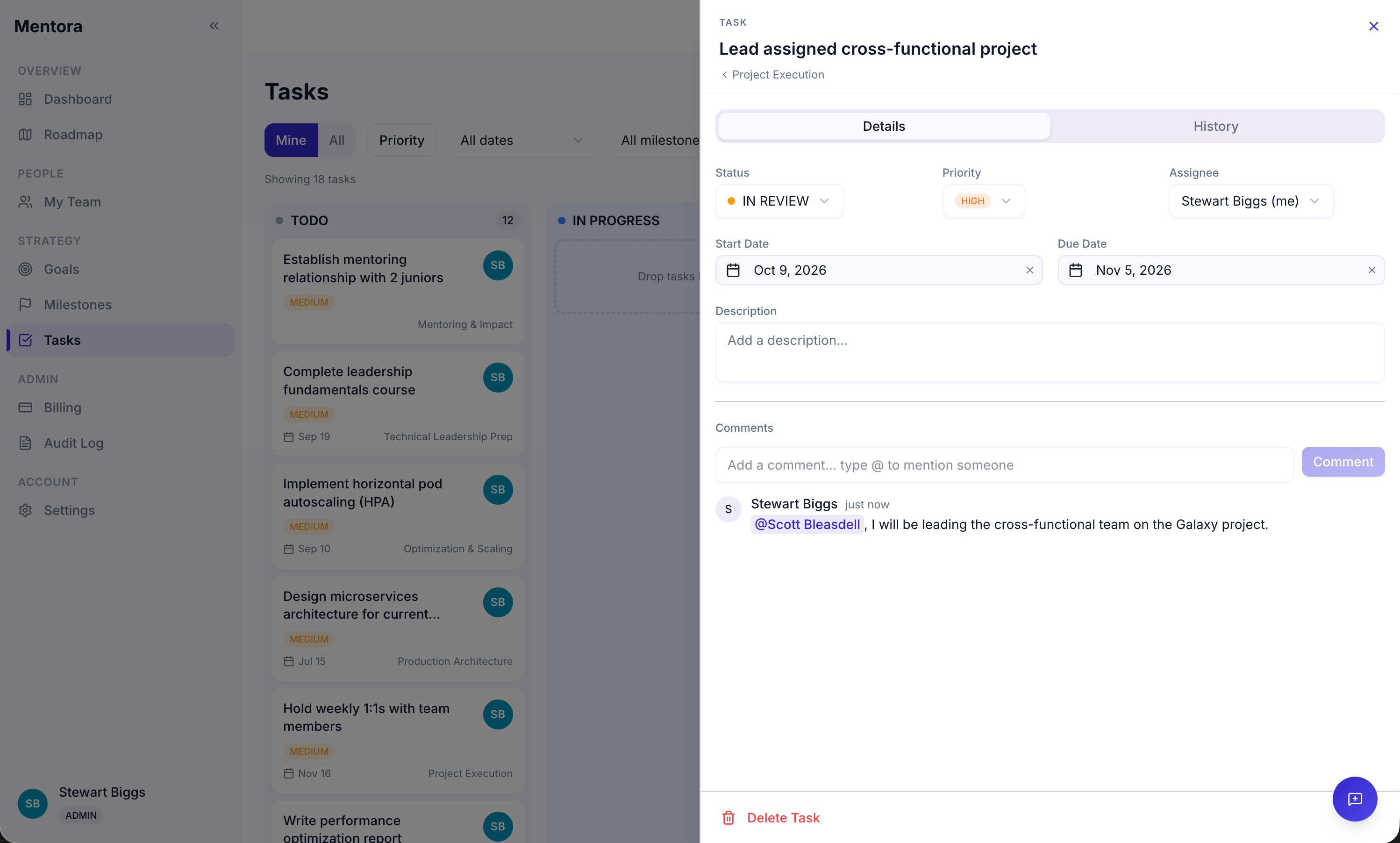
- Your comment appears immediately
- Replies are threaded under your comment
- @mentions trigger notifications
Editing Comments
You can edit your own comments:
- Click the ... menu on your comment
- Select Edit
- Make changes
- Click Save
Deleting Comments
You can delete comments you posted:
- Click the ... menu on your comment
- Select Delete
- Confirm
Deleted comments cannot be recovered.
Using Comments Effectively
Good uses:
- Asking for feedback: "@Manager, what do you think about this approach?"
- Providing updates: "Just completed the design phase. Moving to implementation next week."
- Celebrating progress: "Milestone achieved! Great work, team."
- Asking for help: "@Sarah, can you review my code?"
Avoid:
- Very long comments (use email for detailed discussions)
- Off-topic conversations (use Slack or email)
- Feedback that should be in 1:1 meetings (use comments to summarize, but talk in person too)
Notifications from Comments
When someone:
- Comments on your item — You get a notification
- @mentions you — You get a notification
- Replies to your comment — You get a notification
See Notifications to manage your notification preferences.
Tips
- Comment regularly — Keep your manager in the loop about progress
- Use comments before status changes — Explain what's happening, then update status
- Respond promptly to @mentions — People are waiting for your feedback
- Be specific in feedback — "Great progress! Next step: schedule design review" is better than "Good job!"
Troubleshooting
I don't see comments
Scroll down to the Comments section on the detail page. If no one has commented yet, the section may be empty.
I'm not receiving email notifications
Check Notifications settings. Email notifications can be toggled on/off.
Can I @mention someone not in my workspace?
No. You can only @mention people who have been invited to your workspace. Ask an admin to invite them first.
Can I delete someone else's comment?
No. Only the comment author or an admin can delete comments.